How to Use Lofizen 2.0 – A Guide to the Interface
Feb 24, 2026 5 min read
Lofizen is a lofi music and productivity app that combines relaxing visuals, ambient sounds, and mini apps in one place. This guide walks you through the interface and each tool so you can focus and stay productive.
Signing in
Mini apps are available after you sign in. The bottom control bar shows app icons; if you’re not signed in, some features (like Tasks, Links, Notes, Ambient, and Music) are limited or locked. Sign in via the Profile area in the top-right corner to unlock the full experience. Premium users also get custom backgrounds and the YouTube mini app.
The main interface
Video background
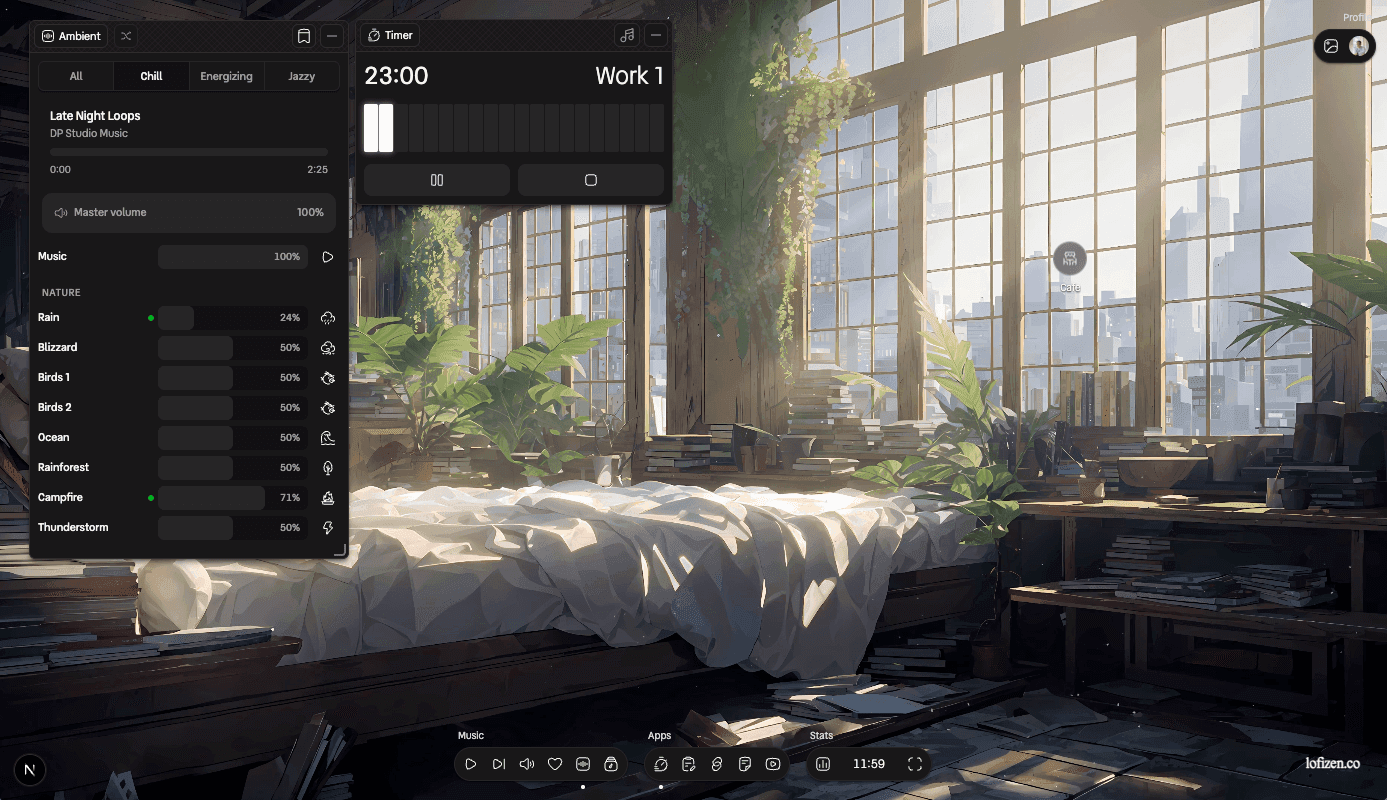
The main view is a full-screen video background (e.g. a lofi study or café scene). It sets the mood and stays behind all mini app windows. You can adjust brightness in the Profile menu so the scene isn’t too bright or too dark.
Control bar (bottom)
The control bar at the bottom is your hub:
- Clock – Current time.
- App icons – Open or close each mini app (Timer, Tasks, Links, Notes, YouTube, Ambient, Music).
- Music controls – Play/pause, skip, and volume for the main lofi stream.
- World clock – See times in other time zones.
- Stats – View your focus and usage stats.
- Fullscreen – Toggle fullscreen for the whole app.
Click an app icon to open that mini app; click again to close it. Multiple apps can be open at once. Move the apps around from their handles (top bars).
Profile and settings (top-right)
The Profile pill in the top-right opens a menu where you can:
- Change background – Pick a different video scene (premium).
- Brightness – Slider to dim or brighten the video.
- Sign in / Sign out
- Help, News, Settings – Links and app options.
Mini apps
Each mini app opens in a draggable window. Some of them are also resizable .You can move it by dragging the title bar and resizing from the bottom right corner (where supported). Bring a window to the front by clicking its title bar.
Timer (Pomodoro)
The Timer app is a Pomodoro-style focus timer:
- Work – Focus block (e.g. 25 minutes).
- Short break – Brief pause (e.g. 5 minutes).
- Long break – Longer rest after several rounds (e.g. 30 minutes).
You can set the duration of each phase and the number of rounds. Start the timer and switch between work and breaks as prompted. The dot grid shows your progress through the rounds.
Tasks
Tasks is a simple Kanban board with three columns: Todo, In Progress, and Done. You can:
- Add new tasks.
- Drag tasks between columns.
- Edit or delete tasks (e.g. via context menu or icons).
- Pin a task – Pin a task to the top-right of the screen so it stays visible while you use other apps (great for a single “focus on this” item). Premium users can expand the Tasks window for a larger board.
Links
Links stores your quick-access bookmarks. Each link shows a favicon and title. Open the Links mini app and use Edit (pencil icon in the header) to add, remove, or reorder links. In edit mode you can drag to reorder. Your links are saved to your account and sync across sessions.
Notes
Notes is a rich note-taking mini app. You can:
- Create multiple notes (each as a block-based document).
- Use tabs to switch between note folders.
- Format text, add lists, and structure content.
- Fullscreen – Expand the Notes window to fullscreen for a distraction-free writing view (toggle in the window header). Premium users get a larger default Notes window and can resize it freely.
Notes are saved to your account.
Ambient
Ambient lets you layer soundscapes on top of the music (rain, café, keyboard, wind, etc.):
- Each sound has a volume slider – mix several at once (e.g. rain + café).
- Presets – Use the bookmark icon in the header to switch to saved presets (combinations of sounds and volumes).
- Shuffle – The shuffle button in the header can randomize or cycle ambience (depending on app behavior).
Adjust the main lofi volume from the control bar and the ambient layers from this mini app so the blend fits your focus session.
Music
Music shows your liked songs. When you’re playing lofi from the control bar, you can like tracks; they appear here. Open the Music mini app to see the list and click a song to play it again. Useful for revisiting favorites without leaving Lofizen.
(Requires sign-in; likes are stored per account.)
YouTube (Premium)
The YouTube mini app is for Premium users. It lets you play YouTube videos (e.g. lofi streams or study mixes) inside Lofizen, with shuffle and other controls, so you can keep one window for both video and your other mini apps.
Tips for daily use
- Pin one task – Use Tasks to define today’s main focus, pin it, and keep the Timer running for work blocks.
- Set the mood – Pick a background and brightness you like, then add one or two ambient layers (e.g. rain + café) so you’re not switching constantly.
- Use Links for routines – Add your go-to tools in Links and open them from the same place you’re focusing.
- Notes in fullscreen – When writing or planning, open Notes and switch to fullscreen to hide other apps.
- Adjust as you go – Draggable windows mean you can place Timer, Tasks, and Notes where they don’t cover the scene you want to see.
Lofizen is built so that music, visuals, and productivity tools live in one place. Sign in, open the mini apps you need, and use the control bar and Profile menu to tailor the experience. For more, check out the rest of our blog or the in-app Help from the Profile menu.